Envibe: How to configure a Direct Debit Membership
Unlike Upfront Membership configuration, for Direct Debit Memberships it is easiest to create the Item first, as this is then linked via the Debit Type as configured in Debit Types.
1.0 Direct Debit membership Item
Note: For Direct Debit Memberships, it is easiest to create the Item first to be able to seamlessly proceed with configuration of the Direct Debit Membership Category, Direct Debit Membership Type and Debit Type.
To create a new Direct Debit Membership Item:
1. Launch DATA MANAGEMENT.
2. Search and select Items.
3. Click NEW.
4. Enter a Name for the item, e.g. Student Direct Debit Membership.
5. Enter a Default Price for the item. This will need to be the cost of the membership per debit cycle, e.g. per fortnight, per month etc depending on the site’s requirements.
6. Components – Direct Debit Membership Items do not need a component. Leave this blank.
7. Select the relevant Department disbursements by clicking ADD and selecting from the dropdowns.
8. Permit sales level discounting – This option will only be enabled if this item/charge has a sales level discount applied.
9. Click SAVE.
2. Direct Debit Categories
- To create a new Direct Debit Membership Category:
1. Launch DATA MANAGEMENT.
2. Search and select Membership Categories.
3. Click NEW.
4. Enter a Name for the category, e.g. Community Direct Debit Memberships, Student Direct Debit Memberships.
5. Sales level – Pricing markdowns implicit to a membership type are specified by a sales level.
Access Type – Gate Entry configuration.
6. Included Admission Type – Include preconfigured admission types. What can be accessed if a customer holds this membership?
7. Applicable Site Record – Applicable site record for this category. If left blank, defaults to all sites.
8. Allow linked – Allows membership to be linked, e.g. Family memberships.
9. Allow tokens – The term “Token” relates to a membership card in Envibe. If this option is selected, Envibe will prompt the user to enter a token number when registering a member for this membership.
10. Allow suspension – The memberships connected to the category can be suspended (put on hold).
11. Require start day – The user will be required to select a specific day for the membership category to start on.
12. Require end period – When the membership period will expire days, months, years. Not a mandatory field, and generally not relevant for Direct Debit memberships.
13. Is disables – If this option is ticked, the Membership Category will be disabled from usage and will not appear during the membership registration process.
14. Click SAVE.
3. Debit Types
A Debit Type needs to be configured to link Items to their Membership Type.To create a new Debit Type:- 1. Launch DATA MANAGEMENT.
- 2. Search and select Debit Types.
- 3. Click New.
- 4. Enter a Name for the Debit Type, e.g. Community Direct Debit Memberships, Student Direct Debit Memberships.
- 5. Schedule – Select the appropriate debit schedule from the dropdown, e.g. weekly, fortnightly, monthly etc.
- 6. Upfront Quantity – It is recommended that one (1) debit amount is taken upfront as a cash/EFTPOS payment. This will automatically start the direct debit payment on period later.
- 7. Ongoing Quantity – this denotes how many units of the item will be collected per debit. This is usually set to 1 for direct debit memberships.
- 8. Items – Search and select the Direct Debit Membership Item. NOTE: The item will need to be configured prior to linking.
- 9. Don’t debit when outstanding balance – If this option is selected, Envibe will not continue to debit any member who has recorded an outstanding balance.
- 10. Limit debit amount to the run amount – checking this option will ensure only the debit amount is collected each debit run.
11. Allow payment method deferring – Allows the user to add bank details later.
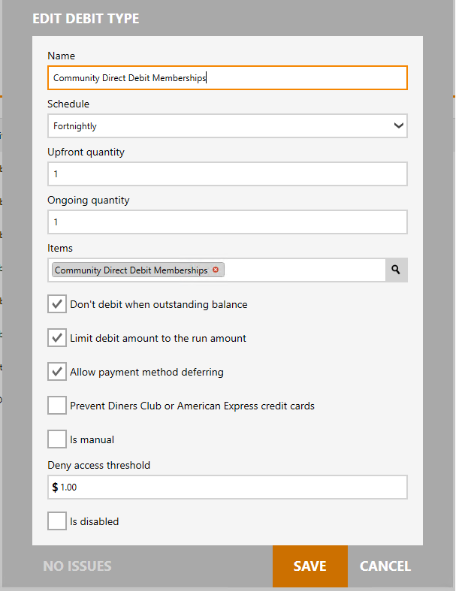
12.Prevent Diner Club or American Express credit cards – Checking this option will not allow any Diner Club or American Express credit cards to be added as valid payment method for members
- 13. Is Manual – Checking this will not allow for any automatic collection of payments from Envibe/EziDebit.
- 14. Deny Access Threshold – Entry will be denied if the amount specified here is met.
- 15. Click SAVE.
4. Direct Debit membership Types
Direct Debit Membership Types coincide with the previously configured Direct Debit Membership Category.To create a new Direct Debit Membership Type:- 1. Launch DATA MANAGEMNET.
- 2. Search and select Membership Type.
- 3. Click NEW.
- 4. Enter a Name for the membership type, e.g. Community Direct Debit Membership, Student Direct Debit Membership.
- 5. Select the Membership Category from the dropdown menu.
- 6. If applicable, enter a specific Start Date for the membership type.
- - This will be the default start
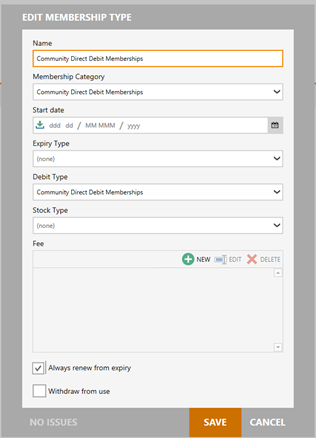
7. Set the Expiry Type by selecting between Date or Period. Date refers to a specific end date, while period refers to the length of time a membership will be active.
8. If Expiry Type – Leave blank as direct debits are continuous and do not expire after a length of time.
9. Select the Debit Type.
10. Stock Type – if a POS item is sold with a membership, e.g. a Membership Card.
11. Fee – relates to additional charges for the membership, e.g. a joining fee. NOTE: The item will need to be configured prior to linking.
12. Always renew from expiry – This is always ticked for Direct Debit Memberships to ensure the debit type continues to rollover.
13. Withdraw from Use – if selected, the membership type is no longer available to the user.
14. Click SAVE.
- 1. Launch DATA MANAGEMENT.
- 2. Search and select Debit Types.
- 3. Click New.
- 4. Enter a Name for the Debit Type, e.g. Community Direct Debit Memberships, Student Direct Debit Memberships.
- 5. Schedule – Select the appropriate debit schedule from the dropdown, e.g. weekly, fortnightly, monthly etc.
- 6. Upfront Quantity – It is recommended that one (1) debit amount is taken upfront as a cash/EFTPOS payment. This will automatically start the direct debit payment on period later.
- 7. Ongoing Quantity – this denotes how many units of the item will be collected per debit. This is usually set to 1 for direct debit memberships.
- 8. Items – Search and select the Direct Debit Membership Item. NOTE: The item will need to be configured prior to linking.
- 9. Don’t debit when outstanding balance – If this option is selected, Envibe will not continue to debit any member who has recorded an outstanding balance.
- 10. Limit debit amount to the run amount – checking this option will ensure only the debit amount is collected each debit run.
11. Allow payment method deferring – Allows the user to add bank details later.
- 13. Is Manual – Checking this will not allow for any automatic collection of payments from Envibe/EziDebit.
- 14. Deny Access Threshold – Entry will be denied if the amount specified here is met.
- 15. Click SAVE.
4. Direct Debit membership Types
- Direct Debit Membership Types coincide with the previously configured Direct Debit Membership Category.To create a new Direct Debit Membership Type:
- 1. Launch DATA MANAGEMNET.
- 2. Search and select Membership Type.
- 3. Click NEW.
- 4. Enter a Name for the membership type, e.g. Community Direct Debit Membership, Student Direct Debit Membership.
- 5. Select the Membership Category from the dropdown menu.
- 6. If applicable, enter a specific Start Date for the membership type.
- - This will be the default start
7. Set the Expiry Type by selecting between Date or Period. Date refers to a specific end date, while period refers to the length of time a membership will be active.
8. If Expiry Type – Leave blank as direct debits are continuous and do not expire after a length of time.
9. Select the Debit Type.
10. Stock Type – if a POS item is sold with a membership, e.g. a Membership Card.
11. Fee – relates to additional charges for the membership, e.g. a joining fee. NOTE: The item will need to be configured prior to linking.
12. Always renew from expiry – This is always ticked for Direct Debit Memberships to ensure the debit type continues to rollover.
13. Withdraw from Use – if selected, the membership type is no longer available to the user.
14. Click SAVE.
Related Articles
Envibe: How do I set up a free trial Direct Debit Membership promotion
Question How do I configure my direct debit memberships to off a free period on joining - 4 weeks for example. Answer This is a period at the start of the membership until the first Direct Debit is charged. Applicable to Direct Debit Memberships ...Envibe: How to add a credit to a Direct Debit membership
Question How do I add a credit to a Direct Debit membership to resolve a membership dispute. Answer To credit a Direct Debit Membership you can: 1. Apply manual credit 2. Apply Bulk Credit Apply Manual Credit Supervisors and senior staff with the ...Envibe: How to configure an Upfront Membership
Question How can I configure an upfront membership? Answer Upfront memberships are subscriptions that are paid in full at the commencement of a membership. There are three components are required to configure an upfront membership: 1. Upfront ...Envibe: Are debit runs manual or automatic?
Question How are debit runs processed? Are they a manual or automatic process? Answer When introducing the Envibe debit process and EziDebit integration, it is recommended that the first debit runs are completed manually by an Envibe user to ensure ...Envibe: How to add a Membership Suspension
Question How do I apply a membership suspension? Answer All membership related actions are completed in the Interactions module, allowing users to pick up existing memberships and make adjustments/actions. Suspensions on debit plans are assumptive. ...